Process Accruals
Navigate to the Process Accruals screen by selecting the Attendance Navigation Menu Option and selecting Process Accruals. There are four tabs to allow for selections for who would be included in the bulk accrual process.
Accruing an Attendance Plan (For a single Employee and Bulk Process)
-
Method 1: Accruing for a single Employee
-
Attendance Plan
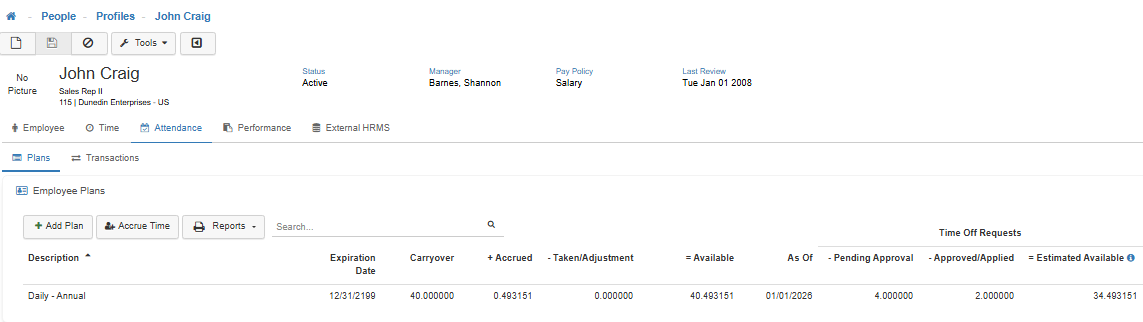
On the Employee’s Attendance > Plans card of the Employee Profile, select the Accrue Time button from the Employee's Attendance > Plans card to accrue time for all the assigned Attendance Plans for the Employee, or select an individual plan to complete the accrual for that single plan. -
Accrue Time
Selecting the Accrue Time button from the Attendance > Plans card will then prompt the User to select the Process Through date to proceed with accruals for all the plans assigned to the Employee.-
If the Process Through Date selected is within the same Plan Year, users will receive the Accrual Insights screen which will display the processed accruals (Plan, Plan ID, Employee Name, Employee ID, Company ID, and Company) and will drop the user back on the Attendance Plan list with the updated accrual values listed.
-
If the Process Through Date selected crosses the Plan Year End Date, users will be prompted to select an Accrual Action. The options for these Accrual Actions are ‘Accrue Only’, ‘Accrue & Close Plan Year’, and ‘Accrue & Close Plan Year, Accrue Through Chosen Date’. Once the action is selected the Accrual Action that fits the desired course, select the Run Accruals button. Confirm to proceed with selections and process through date. A LightWork Database backup is recommended before proceeding with any Plan Year Close. The Accrual Insights then displays the processed accruals.
-
-
-
Method 2: Process Accruals - Bulk Process
-
Process Accruals
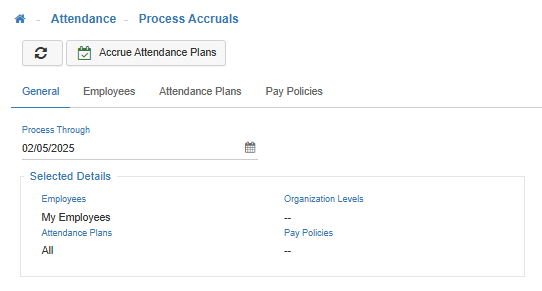
Navigate to the Process Accruals screen by selecting the Attendance Navigation Menu Option and selecting Process Accruals. There are four tabs to allow for selections for who would be included in the bulk accrual process. -
General Tab
The General tab allows for the selection of the Process Through date. The General tab also displays the Selected Details summary section which displays what has been selected on each of the tabs (General, Employees, Attendance Plans, and Pay Policies). -
Employees Tab
The Employees tab allows for selection between My Employees (all Employees the user has access to in LightWork through the Employee Access settings in the User Security), Specific Employee, and Selected Company/Organization Levels -
Attendance Plans Tab
The Attendance Plan tab allows for Attendance Plan selection by moving a specific Attendance Plan from the Available column to the Assigned column. You can move more than one Attendance Plan from Available to Assigned to process the Accrual on more than one plan.
Note: The system defaults the Accrual process to all Attendance Plans in the Available column. If no Attendance Plans are moved from Available to Assigned, and you select Accrue Attendance Plans all plans within the Available column will accrue time. -
Pay Policies Tab
The Pay Policy tab allows for Pay Policy selection by moving a specific Pay Policy from the Available column to the Assigned column. You can move more than one Pay Policy from Available to Assigned to process the Accrual for more than one Pay Policy.
Note: The system defaults the Accrual Process to all Pay Policies in the Available column. If no Pay Policies are moved from Available to Assigned, and you select Accrue Attendance Plans all Pay Policies within the Available column will accrue time. -
Accrue Attendance Plans
Once the desired details have been selected, users can select the Accrue Attendance Plans button and confirm to proceed. The Accrual Insights screen will then display the Employees and Plan where further action was needed as well as the ones which was successfully processed. The options for these Accrual Actions are ‘Accrue Only’, ‘Accrue & Close Plan Year’, and ‘Accrue & Close Plan Year, Accrue Through Chosen Date’.
-
-
Accrual Example Scenario
Let’s say that based on their seniority, an Employee should be receiving 160 hours for the year (accrued daily). This means that for 2024, each day they accrue 0.437158 hours (when using 6 decimal places of precision in the Module Options Maintenance). In 2024, there are 366 days, meaning that 366 is multiplied by 0.437158 which equals 159.999828 hours. For precision, 159.999828 is not the same as getting 160.000000 hours. So, LightWork Attendance adapts, and when generating the accrual transaction/amount that includes the last day of the plan year, corrects for this and adds .000172 into the 'Earned/Accrued' transaction, thus correctly giving the Employee 160 hours. -
Lump Sum - Weekly Scenario
When an Attendance Plan is configured to accrue a Lump Sum on a weekly basis and an Employee starts their employment in the middle of a weekly accrual, the first accrual will not take place until the second week. If the accrual were to take place within the first week, the last week of the current plan year and first week of the next plan year will not accrue time.