Employer
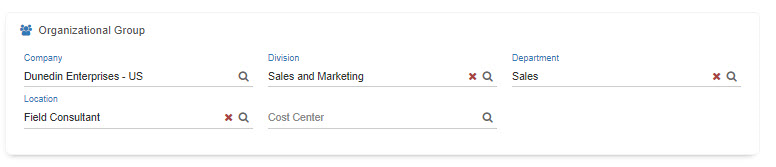
The Employer Maintenance allows you to configure the Company values available for selection in the 'Organizational Group' card located within an Employee's profile in People.
Security Settings
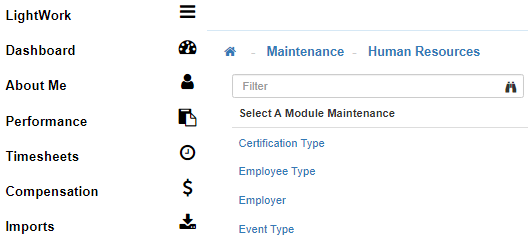
This Maintenance is controlled through Group Security by the ‘Employers Maintenance’ securable.
Note: If you see the Employer Maintenance available for selection under the Human Resources Maintenance, you have been granted at least some visibility through Security Access for this Maintenance.
-
Employee List
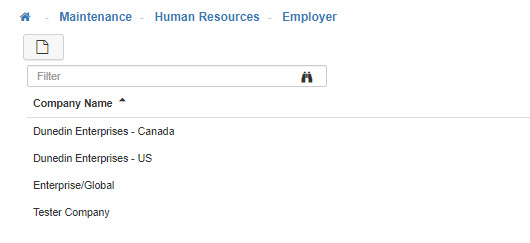
Upon navigation into the 'Employer Maintenance', you will see a list of all configured Employers available for selection within the Organizational Group card in People. Within this screen, you can search existing values as well as select the ‘New’ button to add new Employers.
Note: The entries entered in this Maintenance then become available for selection within the Organizational Group card in People. -
New
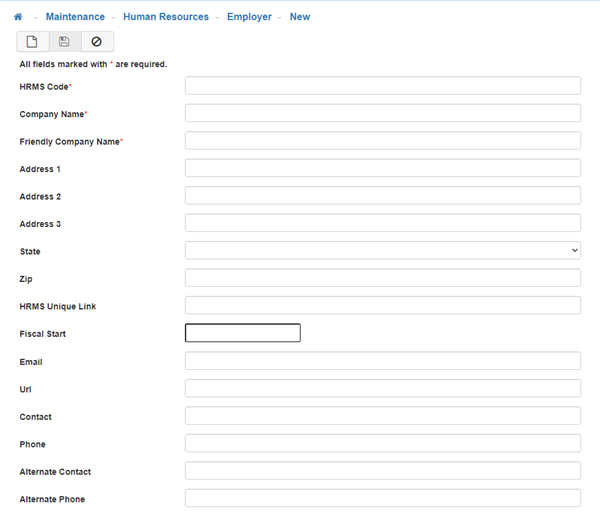
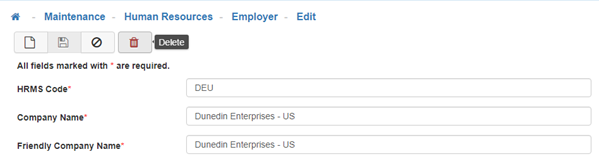
To create a new 'Employer' select the 'New' icon. -
HRMS Code
This field will be brought in from your external HRMS system. If LightWork is a standalone product this section will be setup by your LightWork implementation consultant.
Note: This is a required field. -
Company Name
This field will be brought in from your external HRMS system. If LightWork is a standalone product this section will be setup by your LightWork implementation consultant.
Note: This is a required field. -
Friendly Company Name
This field will be brought in from your external HRMS system. If LightWork is a standalone product this section will be setup by your LightWork implementation consultant.
Note: This is a required field. -
Address 1
Type in the address line 1 information. -
Address 2
Type in the address line 2 information (if applicable). -
Address 3
Type in the address line 3 information (if applicable). -
State
Type in the State. -
Zip
Type in the Zip Code. -
HRMS Unique Link
This field will be brought in from your external HRMS system. If LightWork is a standalone product this section will be setup by your LightWork implementation consultant. -
Fiscal Start
Type in the date of the start of the fiscal year. -
Email
Type in the Company Email. -
URL
Type in the Company URL (website). -
Contact
Type in the name of the Primary Contact. -
Phone
Type in the Primary Contact's phone number. -
Alternate Contact
Type in the name of the Alternate Contact. -
Alternate Phone
Type in the Alternate Contact's phone number. -
Save
Once you are satisfied with your selections, click on 'Save'. -
Delete
To delete an existing Employer, click into the one you would like to delete and select the 'Delete' icon. -
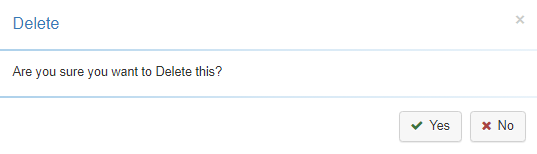
Confirm Deletion
When the 'Confirm Deletion' modal generates, select 'Okay' to confirm deletion, or 'No' to return to the Employer without deleting.
Note: Within People, this field can be found by navigating into the Job tab, and looking under the Organizational Group card.
Lookup Tool
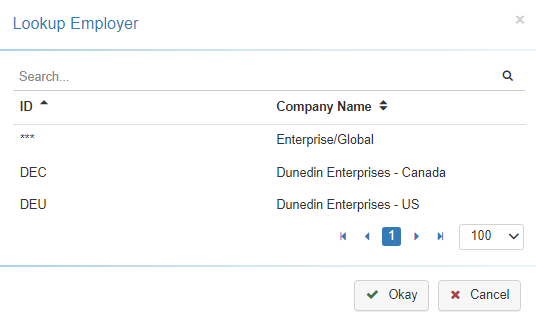
Once this field is selected you will see the values configured within the previously described Maintenance available for assignment through the 'Employer' lookup tool.